Your first model response
Before you start
Complete first administrator setup, sign in, and verify the installation. You need Operator or Administrator access to create a model. An administrator creates API keys.
1. Choose a route
Open Models → Create. Use a small model for the first test.
- Local: select an engine and an available compute target. CPU is an option for supported Ollama/vLLM models; an eligible GPU is not required for every engine.
- External: supply an existing provider endpoint, model identifier and credential. This avoids local inference memory requirements but sends requests to that provider.
See choose an inference engine if unsure.
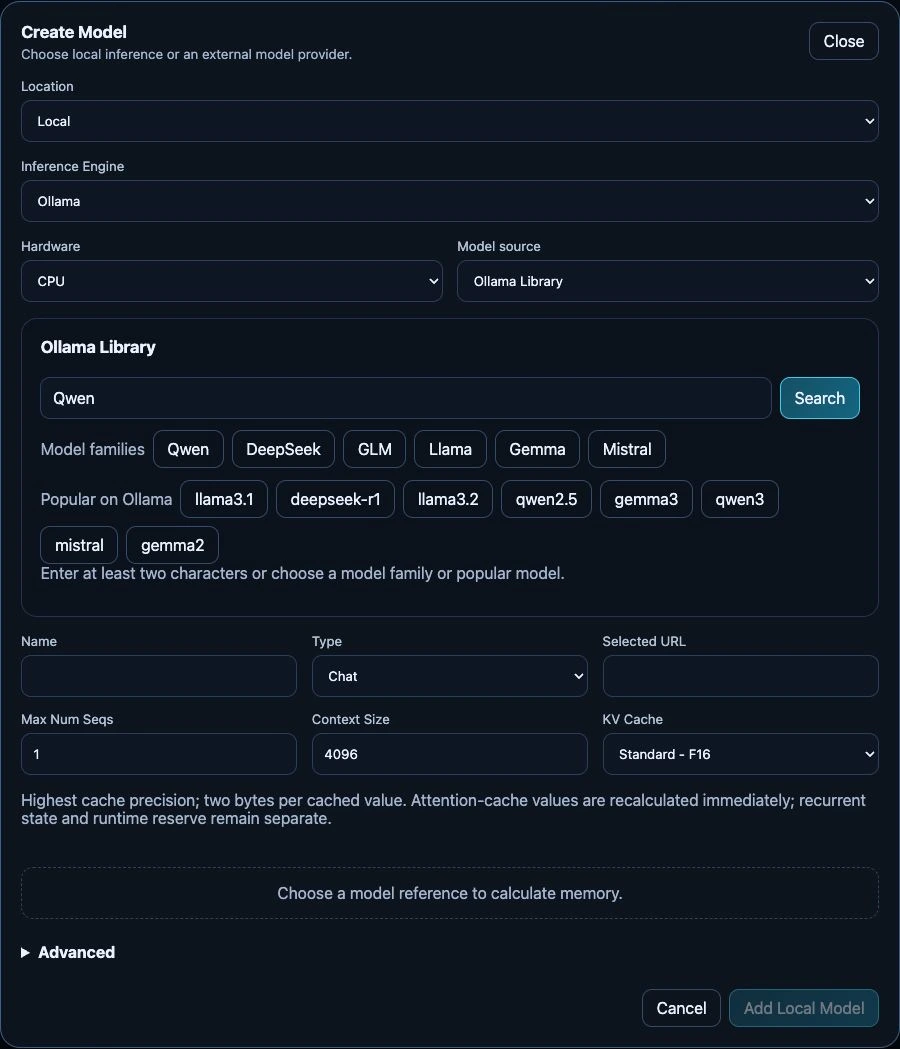
The unsubmitted Create Model form on the test appliance, captured 24 September 2026. No model has been selected yet, so the memory estimate and Add Local Model action are not available. The fields change with the selected engine.
2. Configure and create
For a local model, choose a compatible registry result/tag or a direct reference. Review the selected artifact, context length, concurrency and memory budget. For the first test, keep concurrency at one and choose a modest context rather than the model's largest advertised window. FreeToken has a separate memory form.
Create the model and wait for Ready. The first start may download large files. Use Logs on the model card to distinguish downloading, initialization and failure. Do not repeatedly remove and recreate a model merely because a download takes time.
3. Send a request
Open API Access as an administrator, copy the displayed endpoint and create a named key. Store the one-time key privately. Use that endpoint and the deployed model name in your OpenAI-compatible client. The exact key scope and endpoint are shown by the appliance; do not use the dashboard login password as an API key.
Alternatively, open LiteLLM from Services and use its Playground with the ready model. A successful request is the first acceptance check; Ready alone does not prove your full application workload.
If it does not work
- GPU unavailable: read its disabled reason and inspect System → Hardware.
- No free slots: stop another model deliberately or review sharing; do not inflate memory.
- Download failure: check model access, disk space and network connectivity.
- Out of memory: reduce context/concurrency or choose a smaller artifact.
Continue with model lifecycle, applications, or troubleshooting.